
See your P6 and Microsoft Project schedules — critical path included
Updated: Jul 22
UniPhi 22 strengthens the bridge to the scheduling tools your planners already use. Schedules uploaded from Primavera P6 and Microsoft Project are visible in a dedicated External Schedule interface, the critical path now comes across with them, and a new API endpoint makes the same data available to your reporting tools.
What’s new
• Critical flag from Microsoft Project: the Critical flag on Tasks and Milestones is captured on import and can be used as a filter when mapping the Project WBS to the UniPhi WBS.
• Critical detection for P6: Tasks and Milestones where the Early Start Date equals the Late Start Date (zero float) are automatically marked as Critical.
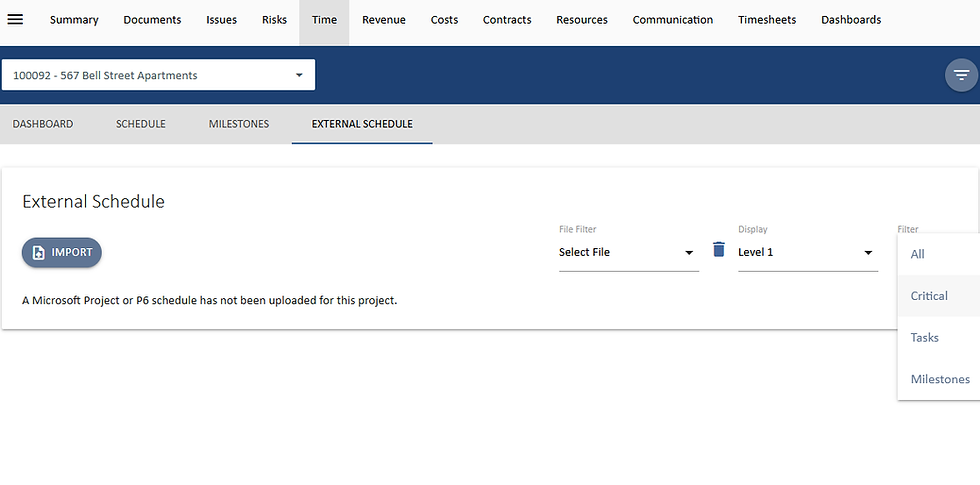
• External Schedule module: in Time → External Schedule you can import a schedule file, choose which file to view, set the display level (Level 1, 2, …) and filter the schedule by All, Critical, Tasks or Milestones.
• API access: a new /api/externalschedule endpoint returns the Tasks and Milestones uploaded from P6 and Microsoft Project, ready to consume in Power BI or any downstream system.
How to use it
1. Go to Time → External Schedule.
2. Click Import and upload your P6 or Microsoft Project file.
3. Use File Filter to select the uploaded schedule, Display to set the outline level, and Filter to narrow the view to Critical items, Tasks only or Milestones only.
4. When mapping the imported schedule to the UniPhi WBS, use the Critical filter to focus the mapping on the activities that drive the completion date.
The External Schedule interface and its All / Critical / Tasks / Milestones filter were verified on the demo site.
Comments