
Authenticating Your UniPhi ID with an Authenticator App
- Apr 16
- 1 min read
1. Visit id.uniphi.com.au and login

2. An OTP email code will be sent to your address. If the receipt for this email is delayed for more than 15mins due to an email spam filter, please request the code again. The email spam filter will learn to not filter the email out again.
3. Enter the code to login

4. Once logged in, click on the Settings menu

5. Within the menu, you can change your account details, password and your 2FA methods. Click on Enable to setup an Authenticator app

6. You will then be required to scan the QR code with your phone via your Authenticator app of choice and enter the generated code

7. You have now successfully enabled your authenticator app onto UniPhi ID

How to login
When you now login (after performing step 1 of this guide) to your UniPhi deployment, you will be asked to choose which authentication method you prefer:

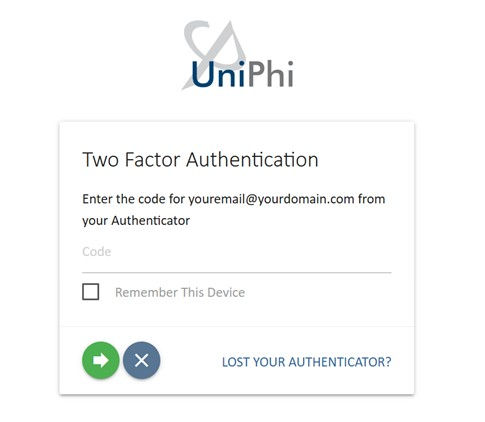
Enter the code and click on the green arrow to complete logging in


Comments