
Guided Workflows – Issues Module
- Mar 4
- 3 min read
Overview
Guided Workflows allow administrators to trigger different issue workflow templates based on answers to predefined questions.
Instead of users manually selecting the correct workflow template, the system guides them through a simple question or a series of questions. Based on the answers selected, the appropriate issue template workflow is automatically applied.
This functionality is particularly useful when different process paths exist depending on the situation.
For example:
In NEC contracts, different processes may apply depending on the type of notice (e.g., Early Warning vs Compensation Event).
In JCT contracts, workflows may differ depending on whether the issue relates to a dispute, instruction, or variation.
Guided workflows simplify the process for users and ensure that the correct actions, responsibilities, and timelines are automatically applied.
How Guided Workflows Work
Guided workflows operate by linking three components:
Answer Lists (Custom Lists) - These contain the possible answers to the guided question.
Issue Workflow Templates - These define the sequence of actions, roles, and due dates required to manage an issue.
Guided Workflow Questions - These present a question to the user when creating an issue and trigger the appropriate workflow template based on the selected answer.
When a user creates an issue and selects the relevant category/workflow, the question will appear. The selected answer determines which issue workflow template is applied automatically.
What Guided Workflows Are Used For
Guided workflows are commonly used to manage:
Contractual processes (NEC Early Warnings, Compensation Events)
RFIs and technical queries
Disputes and claims
Non-conformance reports (NCRs)
Internal approval workflows
They are particularly valuable in contracts with multiple decision paths, ensuring the correct procedure is followed without requiring the user to understand the full contract process.
How to Set Up Guided Workflows
Setting up guided workflows involves three main steps.
Step 1 – Create Answer Lists
First, create the answers that will appear in the guided workflow question.
Go to Hamburger Menu > Configuration
Select Custom Lists

Press the yellow add button create a new list under the Custom Dropdown List sub navigation.

Enter the list name and the items items that will represent the possible answers and press Save.

Example list values might include:
Early Warning
Compensation Event
Dispute
Information Request
These values will later be used to trigger specific workflow templates.
Step 2 – Create Issue Workflow Templates
For detailed instructions on creating issue templates, refer to the related knowledge base article: Workflows using the Issue system
Step 3 – Create the Guided Workflow
Once the lists and templates are ready, you can create the guided workflow.
Go to Configuration > Issues.

Click into the Guided Workflows sub navigation and select Add Workflow.

Enter a name for the workflow

Create a question or a series of questions and add a description if required.

Under Answers, select the Custom List created earlier and click Save.
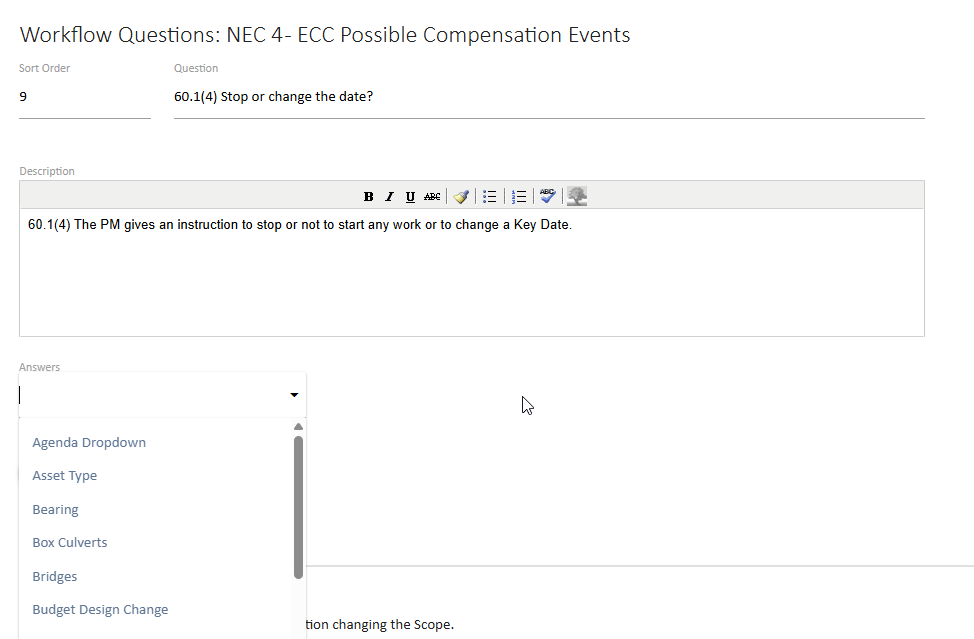
After saving, each answer in the list will allow you to assign a workflow template.

Creating an Issue Using a Guided Workflow
Once configured, the guided workflow will appear when creating an issue.
Select the relevant project Navigate to the Issues Module > Workflows Sub navigation

Click the yellow plus button to Start a New Workflow.
Enter a name and select the relevant workflow from the dropdown list.

Tick the appropriate answer for each question.

Then hit the Save & Drill button to drill in to the new issue.

When the issue is created:
The configured questions will appear at the top along with the answers provided will appear
The system automatically applies the linked workflow template and the issue will then generate the predefined actions, assigned roles, and due dates defined in the template.

Key Benefits
Guided workflows provide several advantages:
Ensure consistent processes
Reduce user error
Simplify complex contract procedures
Automatically trigger correct issue workflows
Improve project governance and compliance
This functionality is particularly valuable for projects operating under structured contractual frameworks such as NEC or JCT contracts, where the correct procedure must be followed depending on the specific situation.


Comments